Setting Up Your First Game Server: Complete Beginner's Guide - Gaming Hosting 101 (Part 4)
To set up your first game server: (1) Access control panel with login credentials, (2) Start server and wait 2-5 minutes for initial setup, (3) Configure server.properties/settings via file manager, (4) Install essential plugins via FTP or one-click installer, (5) Whitelist yourself as operator, (6) Test connection locally, (7) Share IP:Port with players. First-time setup takes 30-60 minutes including testing.
Welcome to Part 4 of Gaming Hosting 101! You’ve learned about hosting, compared types, and chosen your plan. Now it’s time for the exciting part—actually setting up your server!
Series Progress:
- What is Game Server Hosting? ✓
- Types of Game Server Hosting ✓
- Choosing the Right Hosting Plan ✓
- Setting Up Your First Server ← You are here
- Server Management Best Practices
This guide walks you through setup from start to finish, even if you’ve never done this before.
Table of Contents
- Before You Begin
- Accessing Your Server
- Control Panel Walkthrough
- First Server Start
- Basic Configuration
- Minecraft Setup Guide
- FiveM Setup Guide
- Rust Setup Guide
- Installing Plugins/Mods
- Player Management
- Testing Your Server
- Troubleshooting Common Issues
- Going Live Checklist
Before You Begin
What You’ll Need
From Your Hosting Provider:
- ✉️ Welcome email with credentials
- 🌐 Server IP address and port
- 🔐 Control panel login URL
- 📁 FTP/SFTP details (if provided)
On Your Computer:
- 🎮 Game client installed (to test)
- 📝 Text editor (Notepad++ recommended for Windows)
- 📂 FTP client (FileZilla - optional but useful)
Time Required:
- ⏱️ First-time setup: 30-60 minutes
- ⏱️ With experience: 10-15 minutes
Setup Overview
Here’s what we’ll do step-by-step:
1. Access Control Panel → 2 minutes2. Start Server (First Time) → 3-5 minutes3. Basic Configuration → 10-15 minutes4. Install Plugins/Mods → 5-10 minutes5. Test Connection → 5 minutes6. Invite Players → 2 minutes───────────────────────────────────Total: 30-40 minutesDon’t worry if it takes longer! First time always takes more time.
Accessing Your Server
Step 1: Find Your Welcome Email
Your hosting provider sent an email titled something like:
- “Your Server is Ready!”
- “Welcome to [Provider Name]”
- “Server Credentials”
What to Look For:
Subject: Your Minecraft Server is Ready!
Control Panel: https://panel.provider.comUsername: user_12345Password: RandomPass123!
Server IP: 123.45.67.89:25565
💡 Pro Tip: Save this email in a “Server Info” folder. You’ll reference it often.
Step 2: Access Control Panel
Open Your Browser:
- Go to the Control Panel URL from email
- You’ll see a login screen
- Enter username and password
- Click “Login”
Common Control Panels:
- Pterodactyl - Modern, dark theme, game controller icon
- Multicraft - Lighter theme, blue/white
- TCAdmin - Professional look, lots of tabs
- Custom Panel - Provider-specific
First Login:
- May ask you to change password
- May show tutorial/welcome screen
- May ask you to verify email
Step 3: Locate Your Server
After Login, You’ll See:
Pterodactyl:
────────────────────────────────│ Servers │├──────────────────────────────┤│ 🎮 Minecraft Server ││ Status: Offline ││ IP: 123.45.67.89:25565 │└──────────────────────────────┘Click on your server name to open the management page.
Control Panel Walkthrough
Understanding the Interface
Most control panels have similar sections:
Main Navigation:
┌────────────────────────────────────┐│ Console | Files | Settings | Backup │└────────────────────────────────────┘Let’s explore each section.
Console Tab
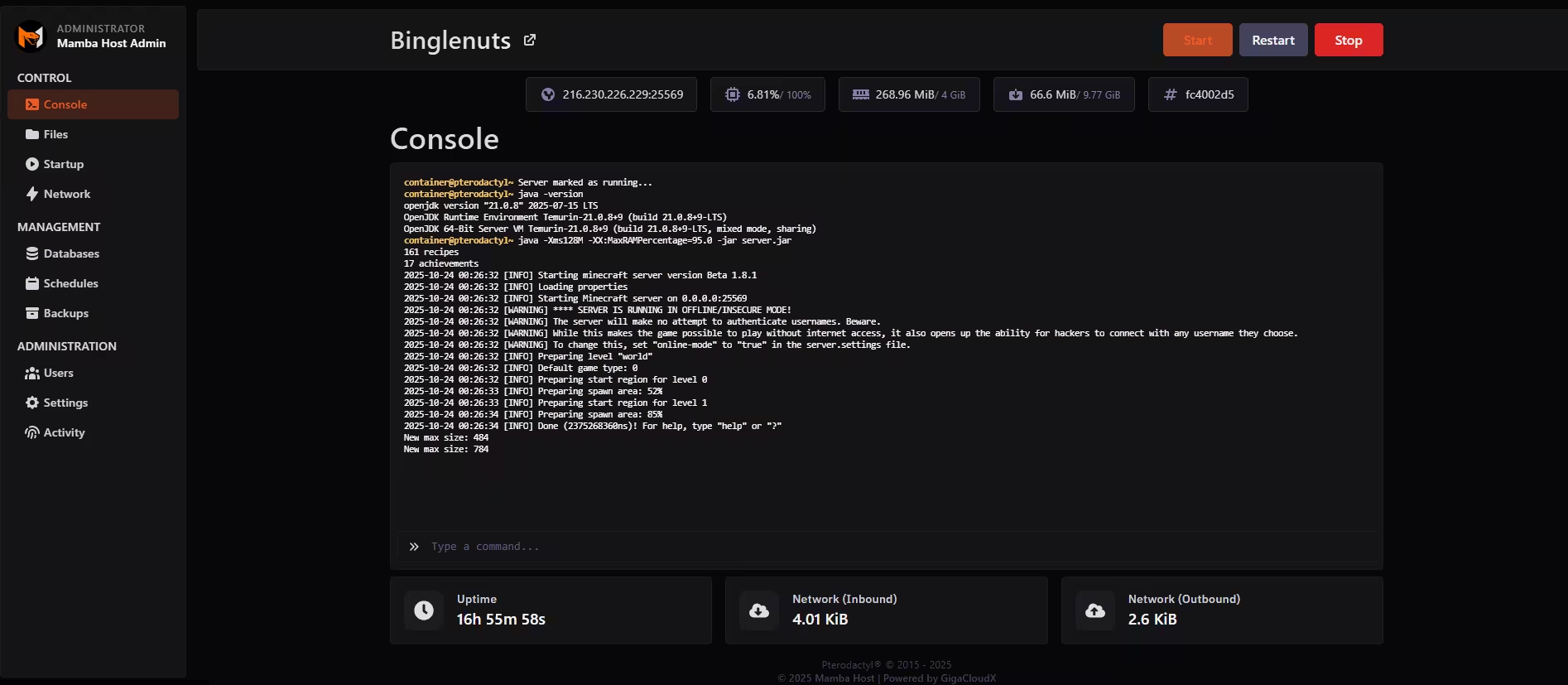
What It Does: Shows server activity in real-time.
What You’ll See:
[10:23:45] [Server thread/INFO]: Starting server...[10:23:46] [Server thread/INFO]: Loading properties[10:23:47] [Server thread/INFO]: Done! Server is ready!Key Features:
- ▶️ Start Button - Starts the server
- ⏹️ Stop Button - Stops the server gracefully
- 🔄 Restart Button - Stops and starts
- 💬 Command Input - Send commands to server
Common Commands:
/help # List available commands/list # Show online players/whitelist add NAME # Add player to whitelist/op NAME # Give admin permissions/save-all # Save the worldFiles Tab
What It Does: Manage server files (worlds, configs, plugins).
Typical Structure:
📁 server/├── 📁 world/ # Minecraft world save├── 📁 plugins/ # Plugins folder├── 📁 mods/ # Mods folder (if modded)├── 📄 server.properties # Main config file├── 📄 server.jar # Server software└── 📁 logs/ # Server logsWhat You Can Do:
- 📝 Edit config files
- 📤 Upload files
- 📥 Download backups
- 🗑️ Delete files
- 📁 Create folders
Settings Tab
What It Does: Configure server resources and startup settings.
Common Settings:
- RAM Allocation - How much memory to use
- Java Version - Which Java to use (8, 17, etc.)
- Startup Command - Advanced users only
- Server Version - Switch game versions
Leave most settings at default unless you know what you’re doing.
Backup Tab
What It Does: Create and restore backups.
Features:
- 💾 Create manual backup
- ⏰ Schedule automatic backups
- 📥 Download backup to PC
- ↩️ Restore from backup
⚠️ Important: Always backup before major changes!
First Server Start
Starting the Server for the First Time
Step 1: Click Start Button
- Find the green “Start” button
- Click it
- Server begins startup process
Step 2: Watch Console Output
What You’ll See (Minecraft Example):
[10:30:00 INFO]: Starting server...[10:30:02 INFO]: Loading libraries...[10:30:05 INFO]: Preparing level "world"...[10:30:15 INFO]: Preparing spawn area: 45%[10:30:20 INFO]: Preparing spawn area: 89%[10:30:22 INFO]: Done! (22.0s)[10:30:22 INFO]: Time elapsed: 22047 msFirst startup takes 2-5 minutes (generating world, loading files)
Step 3: Server is Ready!
When you see:
[INFO]: Done! (XX.Xs)Your server is running! ✅
Understanding Server Status
Status Indicators:
| Status | Meaning | What to Do |
|---|---|---|
| 🟢 Running | Server is online | Ready for players |
| 🔴 Offline | Server is stopped | Click “Start” |
| 🟡 Starting | Server is booting up | Wait 2-5 minutes |
| 🟠 Stopping | Server is shutting down | Wait for completion |
| ❌ Crashed | Server encountered error | Check console for errors |
Basic Configuration
Editing Server Properties
For Minecraft (Most Common):
Step 1: Stop the Server
- Always stop before editing configs
- Click “Stop” button
- Wait for “Server is stopped”
Step 2: Open server.properties
- Go to “Files” tab
- Click
server.properties - Click “Edit” button
Step 3: Important Settings to Change
Server Identity:
# What players see in server listmotd=Welcome to My Server!server-name=My Awesome ServerGame Settings:
# Game mode: survival, creative, adventure, spectatorgamemode=survival
# Difficulty: peaceful, easy, normal, harddifficulty=normal
# Allow PvP (player vs player combat)pvp=true
# World seed (blank = random)level-seed=
# Max players (should match your plan)max-players=20
World Settings:
# Generate structures (villages, temples, etc.)generate-structures=true
# Allow Nether portalallow-nether=true
# Allow End portalallow-end=true
# View distance (lower = better performance)view-distance=10
Protection:
# Require players to be whitelistedwhite-list=false
# Prevent players from flying (anti-cheat)allow-flight=false
# Spawn protection radius (blocks)spawn-protection=16
Step 4: Save Changes
- Click “Save” button (usually top-right)
- Close the editor
Step 5: Start Server
- Click “Start” button
- Changes will apply on startup
Key Configuration Files by Game
Minecraft:
server.properties- Main settingsbukkit.yml- Bukkit/Spigot settingsspigot.yml- Spigot-specific settingspaper.yml- Paper-specific settings
FiveM:
server.cfg- Main configurationtxData/default.json- txAdmin settingsresources/- Resource configs
Rust:
server.cfg- Server settingsusers.cfg- User permissionsbans.cfg- Banned players
Minecraft Setup Guide
Complete Minecraft Server Setup
Step 1: Choose Server Type
Vanilla (No Plugins):
- Default installation
- Pure Minecraft experience
- Best performance
- No customization
Spigot/Paper (Plugins):
- Plugin support
- Better performance than vanilla
- Most popular choice
- Recommended for most users
Forge/Fabric (Mods):
- Mod support
- Requires mods on client too
- More complex setup
- For modded gameplay
Installing Paper (Recommended)
Why Paper?
- 30-50% better performance than vanilla
- Plugin support (Bukkit/Spigot plugins)
- Active development
- Most features
Installation Steps:
Method 1: Control Panel (If Available)
- Go to Settings/Server Type
- Select “Paper” from dropdown
- Choose version (latest stable)
- Click “Install”
- Wait for installation
- Start server
Method 2: Manual Installation
- Download Paper from papermc.io
- Stop your server
- Upload
paper.jarvia FTP or file manager - Rename
server.jartoserver.jar.backup - Rename
paper.jartoserver.jar - Start server
Essential Minecraft Plugins
Must-Have Plugins for Beginners:
1. EssentialsX - Core Commands
- Download: essentialsx.net
- Features: /home, /warp, /tpa, economy
- Files to upload:
EssentialsX.jar,EssentialsXChat.jar,EssentialsXSpawn.jar
2. WorldEdit - Building Tools
- Download: enginehub.org/worldedit
- Features: Copy/paste, fill, undo
- Admin/builder essential
3. CoreProtect - Rollback/Logging
- Download: coreprotect.net
- Features: Track all changes, rollback grief
- Essential protection
4. LuckPerms - Permissions
- Download: luckperms.net
- Features: Permission management, ranks
- Required if you want staff roles
5. Vault - Economy API
- Download: dev.bukkit.org
- Required by many plugins
- Enables economy features
Minecraft Configuration Best Practices
server.properties Optimization:
# Performance Settingsview-distance=8           # Lower = better performancesimulation-distance=6     # Affects mob spawning rangemax-tick-time=60000      # Prevent watchdog timeout
# Network Settingsnetwork-compression-threshold=256  # Compress packetsmax-players=20           # Match your RAM allocation
# World Settingsspawn-monsters=truespawn-animals=truespawn-npcs=true
# Recommended: Disable unless neededenable-command-block=false  # Security risk if open server
Paper Configuration (paper.yml):
# Performancemax-auto-save-chunks-per-tick: 12optimize-explosions: truemob-spawn-range: 6   # Reduce from 8 to improve performance
# Anti-Cheatanti-xray:  enabled: true  engine-mode: 1
FiveM Setup Guide
Complete FiveM Server Setup
FiveM requires more setup than Minecraft. Don’t worry, we’ll walk through it!
Step 1: Generate License Key
Before anything else:
- Go to keymaster.fivem.net
- Login with your Cfx.re account (create if needed)
- Click “New Server”
- Enter server IP (from hosting email)
- Copy license key
Save this key! You’ll need it in server.cfg
Step 2: Access txAdmin
Most hosts pre-install txAdmin:
- Open browser
- Go to
http://YOUR_IP:40120 - You’ll see txAdmin setup wizard
Create Admin Account:
- Username: Your choice
- Password: Strong password
- PIN: 4-6 digits (for quick access)
Step 3: Choose Deployment Recipe
txAdmin will ask what to install:
Popular Recipes:
1. ESX Legacy (Most Popular)
- Full roleplay framework
- Jobs, economy, houses
- Massive resource library
- Best for beginners
2. QBCore (Modern)
- Better performance
- Modern codebase
- Growing resource library
- For experienced users
3. Vanilla (Clean Start)
- No framework
- Build from scratch
- Most control
- Requires development
Recommendation for First Server: Choose ESX Legacy
Step 4: Configure Server Settings
txAdmin will prompt for:
Server Name:
My FiveM Roleplay ServerMax Players:
32 # Start small, scale upOneSync:
✓ Enable OneSync # Required for 32+ playersLicense Key:
[Paste your key from Step 1]Steam API Key (Optional but Recommended):
- Go to steamcommunity.com/dev/apikey
- Register for a key
- Copy and paste
Step 5: Installation Process
txAdmin will now:
- Download framework files (5-10 minutes)
- Configure database
- Set up resources
- Configure server.cfg
Progress will show:
Downloading ESX Legacy... ████████░░ 80%Installing resources... ████░░░░░░ 40%Configuring database... ██████████ 100%Wait until completion message:
✅ Installation Complete!Click "Start Server" to beginStep 6: FiveM Server.cfg Explained
Key Settings in server.cfg:
Server Identity:
sv_hostname "^1My RP Server^7 | ESX | Custom Cars"sv_projectName "My FiveM Server"sv_projectDesc "A FiveM Roleplay Server"Server Settings:
# License key (REQUIRED)sv_licenseKey "YOUR_KEY_HERE"
# Max playerssv_maxclients 32
# OneSync (for 32+ players)set onesync on
# Steam API Keyset steam_webApiKey "YOUR_KEY"
MySQL Connection:
# Database connection (pre-configured by txAdmin)set mysql_connection_string "mysql://user:pass@localhost/fivem"Resource Loading:
# Core resourcesensure mapmanagerensure chatensure spawnmanagerensure sessionmanager
# Frameworkensure es_extended
# Jobsensure esx_policejobensure esx_ambulancejob
Rust Setup Guide
Complete Rust Server Setup
Rust is more resource-intensive but setup is straightforward.
Step 1: Initial Configuration
Key Settings (server.cfg):
# Server Identityserver.hostname "My Rust Server | Noob Friendly | 2x Rates"server.description "A beginner-friendly Rust server"server.url "https://discord.gg/yourserver"server.headerimage "https://yoursite.com/banner.jpg"
# Core Settingsserver.maxplayers 100server.worldsize 4000server.seed 12345server.level "Procedural Map"
# Wipe Scheduleserver.saveinterval 300  # Save every 5 minutes
Step 2: Installing Oxide/uMod
Why Oxide?
- Plugin support
- Moderation tools
- Custom features
Installation (Most Hosts):
- Control panel → Mods section
- Click “Install Oxide”
- Wait for installation
- Restart server
Manual Installation:
- Download from umod.org
- Upload via FTP to server root
- Restart server
Step 3: Essential Rust Plugins
Must-Have Plugins:
1. Admin Tools
- Better admin commands
- Player management
- Teleportation
2. Auto Door Close
- Doors auto-close after 5 seconds
- Prevents raiding exploits
3. Economics
- In-game currency
- Shop system
4. Kits
- Starter kits for new players
- VIP kits
5. Auto Wipe
- Automated server wipes
- Scheduled restarts
Installation:
- Download plugin
.csfile - Upload to
/oxide/plugins/ - Server auto-loads plugin
Installing Plugins/Mods
General Plugin Installation
Method 1: One-Click Installer (If Available)
Pterodactyl Example:
- Go to “Plugins” tab
- Search for plugin name
- Click “Install”
- Restart server
Advantages:
- Easiest method
- Automatic updates
- No FTP needed
Method 2: FTP Upload (Universal)
Step 1: Download Plugin
- Get
.jarfile (Minecraft) - Get
.csfile (Rust) - Get folder (FiveM)
Step 2: Connect via FTP
Using FileZilla:
- Open FileZilla
- Enter FTP details from email:
- Host:
ftp.yourprovider.com - Username:
user_12345 - Password:
yourpassword - Port:
21
- Host:
- Click “Quickconnect”
Step 3: Navigate to Correct Folder
Minecraft:
- Navigate to
/plugins/ - Upload
.jarfile
FiveM:
- Navigate to
/resources/ - Upload resource folder
Rust:
- Navigate to
/oxide/plugins/ - Upload
.csfile
Step 4: Restart Server
- Stop server
- Wait 10 seconds
- Start server
- Plugin will load
Method 3: Control Panel File Manager
If no FTP access:
- Go to “Files” tab in control panel
- Navigate to plugins folder
- Click “Upload” button
- Select plugin file
- Wait for upload
- Restart server
Verifying Plugin Installation
Check Console Output:
Minecraft:
[INFO]: Loading plugin EssentialsX v2.20.1[INFO]: EssentialsX v2.20.1 enabledCheck In-Game:
Minecraft:
/pluginsYou should see your plugin listed in green.
If Plugin Shows Red:
- Plugin failed to load
- Check console for errors
- Verify compatible version
Player Management
Adding Your First Admin (You!)
Minecraft:
Method 1: Console (Recommended)
- Go to Console tab
- Type command:
/op YourMinecraftUsername
- Press Enter
- You now have admin powers!
Method 2: ops.json File
- Stop server
- Go to Files tab
- Open
ops.json - Add:
[{"uuid": "your-uuid-here","name": "YourUsername","level": 4}]
- Save and restart
FiveM:
Via txAdmin:
- Open txAdmin (
http://YOUR_IP:40120) - Login
- Go to “Players” tab
- Find your name
- Click “Make Admin”
Via server.cfg:
add_ace group.admin command allowadd_principal identifier.steam:YOUR_STEAM_ID group.adminSetting Up Whitelist
Minecraft Whitelist:
Enable Whitelist:
/whitelist onAdd Players:
/whitelist add PlayerNameRemove Players:
/whitelist remove PlayerNameList Whitelisted:
/whitelist listEdit whitelist.json Directly:
[ "PlayerOne", "PlayerTwo", "PlayerThree"]Banning Players
Minecraft:
Ban Player:
/ban PlayerName Reason for banIP Ban (Prevents Alt Accounts):
/ban-ip 123.45.67.89 ReasonUnban:
/pardon PlayerNameView Ban List:
/banlist playersTesting Your Server
Testing Connection
Step 1: Test Locally
Minecraft:
- Open Minecraft
- Multiplayer → Add Server
- Server Address:
localhostor127.0.0.1 - Click “Done” then “Join Server”
If You Can Connect: ✅ Server is working locally!
If You Can’t Connect: ❌ Server may not be running
- Check console for errors
- Verify server status is “Running”
Step 2: Test from External Network
Get Your Server IP:
- Check welcome email
- Usually format:
123.45.67.89:25565
Test Connection:
Minecraft:
- Open Minecraft
- Multiplayer → Add Server
- Server Address:
123.45.67.89:25565 - Try to join
FiveM:
- Open FiveM
- Press F8 (console)
- Type:
connect 123.45.67.89:30120 - Press Enter
Inviting Friends to Test
Give Friends Your IP:
Share This Information:
Server IP: 123.45.67.89:25565Game: Minecraft JavaVersion: 1.20.4Mods Required: None (or list mods)Best Practices:
- Test with 2-3 friends first
- Ask them to test different features
- Monitor console for errors
- Check performance (TPS/FPS)
Performance Testing
Minecraft - Check TPS:
Install Spark Plugin:
- Download from spark.lucko.me
- Upload to
/plugins/ - Restart server
Check Performance:
/spark tpsGood Results:
TPS: 20.0 (Perfect!)MSPT: 15.0 (Good)Poor Results:
TPS: 14.5 (Lag!)MSPT: 45.0 (Overloaded)If TPS is Low:
- Too many plugins
- Insufficient RAM
- Need performance optimization
- Reduce view distance
Troubleshooting Common Issues
Server Won’t Start
Possible Causes & Solutions:
1. Insufficient RAM
Error:
Error occurred during initialization of VMCould not reserve enough space for object heapSolution:
- Increase RAM allocation in settings
- Or reduce RAM in startup parameters
- Or upgrade plan
2. Port Already in Use
Error:
Address already in useSolution:
- Another server using same port
- Restart the panel
- Change port in settings
- Contact support
3. Corrupt World File
Error:
Failed to load worldChunk error at position...Solution:
- Restore from backup
- Delete
/world/folder (starts fresh) - Or use region repair tool
4. Plugin Conflict
Error:
Error loading plugin XCaused by plugin YSolution:
- Remove one plugin at a time
- Test after each removal
- Check plugin compatibility
- Update all plugins
Players Can’t Connect
Error: “Failed to connect to server” or “Timed out”
Checklist:
1. Verify Server is Running
- Check control panel status
- Should show green “Running”
2. Check IP Address
- Verify you’re sharing correct IP
- Include port number (
:25565) - Check for typos
3. Version Mismatch
- Your version: Check server.properties
- Player version: Must match
- Example: Server 1.20.4, Player needs 1.20.4
4. Whitelist Enabled
- Check if whitelist is on:
/whitelist list
- Add player if needed:
/whitelist add PlayerName
5. Firewall/Port Issues
- Provider should handle this
- If self-hosting, check port forwarding
- Contact support if persists
Server Lagging/Low Performance
Symptoms:
- Players experience rubber-banding
- Blocks reappear after breaking
- Delayed actions
- Low TPS (<18)
Solutions:
1. Check Resource Usage
- Control panel → Statistics
- RAM usage should be <85%
- If at 100%, need more RAM
2. Reduce View Distance
# In server.propertiesview-distance=8 # Reduce from 10simulation-distance=6 # Reduce from 83. Remove Heavy Plugins
- Use
/spark profilerto identify - Remove top 3 resource-heavy plugins
- Test performance
4. Optimize Settings
- Use Paper instead of Spigot
- Enable optimization settings
- Clear entity overflow:
/minecraft:kill @e[type=!player]
5. Upgrade Plan
- If at limits, need more resources
- Upgrade RAM/CPU
- Or optimize further
Plugin Not Working
Checklist:
1. Verify Installation
- Check
/plugins/folder - File should be
.jar(not.zip) - Correct folder location
2. Check Console Errors
[ERROR]: Error loading plugin ABC[ERROR]: Missing dependency: Vault3. Install Dependencies
- Many plugins require Vault
- Or other libraries
- Check plugin page for requirements
4. Verify Version Compatibility
- Plugin version matches server version
- Example: Plugin for 1.19, server is 1.20 = won’t work
- Download correct version
5. Check for Conflicts
- Two plugins doing same thing
- Remove one, test
Going Live Checklist
Before Inviting Public Players
Server Configuration:
- Server name set (MOTD)
- Max players configured
- Whitelist settings decided
- Spawn protection set
- PvP settings confirmed
- Difficulty set
Essential Plugins/Mods:
- CoreProtect (or similar logging)
- Basic permissions setup
- Essential commands available
- Anti-cheat (if public)
World Preparation:
- Spawn area built/decorated
- Rules sign at spawn
- Warps set up (if applicable)
- Resource gathering areas defined
Admin Setup:
- You have OP/Admin
- Trusted moderators added
- Staff permissions tested
- Admin commands verified
Backups:
- First backup created manually
- Automatic backups scheduled
- Backup restoration tested
- Backup download location saved
Testing:
- Server starts reliably
- You can connect
- Friends can connect
- No lag with test group
- Plugins working correctly
Community:
- Discord server created (optional)
- Rules written and posted
- Welcome message prepared
- Support system decided
Launch Day Tips
Before Announcing:
1. Stress Test
- Invite 10-20 friends
- Play for 1-2 hours
- Monitor performance
- Fix any issues
2. Have Staff Online
- Be available for first 4-6 hours
- Quick response to issues
- Welcome new players
- Answer questions
3. Monitor Console
- Watch for errors
- Check for connection issues
- Verify plugins working
4. Prepare for Issues
- Have backup ready
- Keep provider support contact handy
- Note peak player count
- Document problems for fixing
During Launch:
First Hour:
- Welcome everyone personally
- Give quick tour of spawn
- Explain basic rules
- Be patient with questions
First Day:
- Stay online as much as possible
- Monitor for griefing/issues
- Gather feedback
- Make quick fixes
First Week:
- Daily check-ins
- Address problems quickly
- Listen to feedback
- Adjust settings based on usage
Growth Phase Checklist
After Successful Launch:
Week 1:
- Average player count recorded
- Performance during peak hours monitored
- Common complaints addressed
- Basic rules enforced
- Staff activity evaluated
Month 1:
- Evaluate if need RAM upgrade
- Add requested features
- Hire additional staff if needed
- Plan first major event
Month 2-3:
- Consider monetization (if applicable)
- Expand features based on feedback
- Build community culture
- Plan for scaling
Common First-Timer Questions
”How long does setup really take?”
Realistic Timeline:
Experienced: 15-20 minutes First Time: 45-60 minutes With Issues: 2-3 hours
Don’t rush! Better to set up correctly than fix mistakes later.
”Can I change settings after server is live?”
Yes! Most settings can be changed anytime:
Requires Server Restart:
- server.properties changes
- Plugin installations
- Version changes
No Restart Needed:
- In-game commands
- Player permissions
- Whitelist changes
Causes World Reset:
- Changing world seed
- Changing world type
- Major version upgrades (sometimes)
“What if I mess something up?”
Don’t Panic!
You Have Backups:
- Stop server
- Go to Backups tab
- Select backup before change
- Click “Restore”
- Start server
- Problem solved!
Or Start Over:
- Delete world folder
- Regenerates on restart
- Lose all builds (use carefully!)
”Do I need to know commands?”
For Basic Server: Not really
- Control panel handles most things
- Can use GUI for common tasks
For Advanced Management: Yes
- Faster than using panel
- More control
- Required for troubleshooting
Learn as You Go:
- Start with basic commands
- Look up commands when needed
- Build knowledge over time
Next Steps
Congratulations! Your server is set up and running! 🎉
What Now?
Short Term (This Week):
- Play on your server daily
- Invite friends to test
- Monitor performance
- Learn basic commands
- Join server owner communities
Medium Term (This Month):
- Set up regular backups
- Install additional plugins
- Create spawn area
- Write server rules
- Plan events
Long Term (Next 3 Months):
- Build active community
- Recruit staff members
- Expand features
- Consider upgrades
- Plan for growth
Coming Up: Part 5
Final Part: Server Management Best Practices
You’ve set up your server! Part 5 covers:
Topics:
- Daily maintenance tasks
- Performance optimization
- Backup strategies
- Security best practices
- Community management
- Handling growth
- Monetization ethics
- Long-term sustainability
Coming Soon!
Get Help
Stuck on Setup?
Option 1: Join Communities
- Mamba Host Discord
- r/admincraft (Minecraft)
- r/FiveM (FiveM)
- r/playrustadmin (Rust)
Option 2: Contact Support
- Most hosts offer setup assistance
- Don’t struggle alone!
- Contact our support team
Option 3: Video Tutorials
- Search YouTube: “[Your Game] server setup”
- Watch and follow along
- Pause and repeat as needed
Quick Command Reference
Minecraft Essential Commands
Server Control:
/stop # Stop server gracefully/restart # Restart server (if supported)/save-all # Save world manuallyPlayer Management:
/whitelist add NAME # Add player to whitelist/whitelist remove NAME # Remove from whitelist/op NAME # Give admin powers/deop NAME # Remove admin powers/ban NAME [reason] # Ban player/pardon NAME # Unban playerTeleportation:
/tp NAME1 NAME2 # Teleport player 1 to player 2/tp NAME x y z # Teleport to coordinates/teleport @a x y z # Teleport all playersWorld Management:
/time set day # Set time to day/weather clear # Clear weather/gamerule keepInventory true # Keep items on death/difficulty peaceful # Set difficultyFiveM Essential Commands
Via txAdmin Console:
restart 60 # Restart server in 60 secondskickall Maintenance # Kick all playersrefreshcmds # Reload commandsensure resourcename # Start resourcerestart resourcename # Restart resourceIn-Game (Admin):
/announce Message # Server-wide announcement/kick [ID] [reason] # Kick player/ban [ID] [reason] # Ban player/unban [ID] # Unban player/tpm # Teleport to markerYou’re Ready!
You’ve successfully set up your first game server! This is just the beginning of your hosting journey.
Remember:
- Everyone starts as a beginner
- Learn from mistakes
- Join communities
- Ask for help when stuck
- Have fun!
Your server is waiting for players. Go make memories! 🎮
Series Progress: ████████████ 4 of 5 complete
Previous Posts:
- Part 1: What is Game Server Hosting? ✓
- Part 2: Types of Game Server Hosting ✓
- Part 3: Choosing the Right Hosting Plan ✓
Next: Part 5: Server Management Best Practices
Last updated: October 24, 2025 Part of Gaming Hosting 101 Series Target audience: Complete beginners setting up their first server