Minecraft Server Not Working? 15 Common Problems & Fixes (2026)
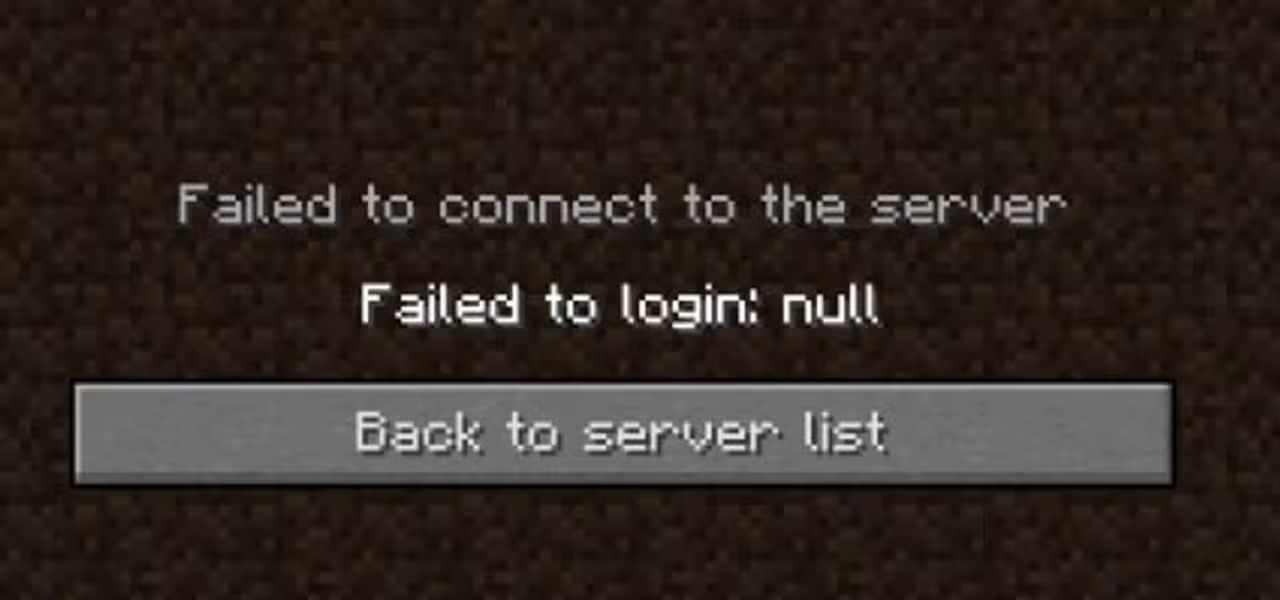
If your Minecraft server isn't working, check these common issues: 1) Verify the server is running and port 25565 is open, 2) Confirm the correct IP address, 3) Check firewall settings, 4) Ensure Java version matches your Minecraft version, 5) Review server logs for specific errors. Most connection issues stem from incorrect port forwarding or firewall blocks.
Nothing is more frustrating than gathering your friends for a Minecraft session only to discover your server won’t work. Whether you’re getting “Connection Refused” errors, experiencing severe lag, or watching your server crash repeatedly, we’ve compiled the 15 most common Minecraft server problems and their solutions.
This troubleshooting guide covers both self-hosted servers and managed hosting scenarios, with step-by-step instructions to get you back online fast.
Table of Contents
- “Connection Refused” or “Can’t Reach Server”
- “Connection Timed Out” Error
- Server Not Appearing in Server List
- “Outdated Server” or Version Mismatch
- “Failed to Verify Username” / Authentication Issues
- Whitelist Blocking Players
- Server Lag and Low TPS
- Server Crashes on Startup
- Java Version Errors
- Out of Memory / RAM Issues
- Plugin/Mod Conflicts
- World Corruption Issues
- “Internal Exception: java.io.IOException”
- Operator (OP) Commands Not Working
- Server Stuck on “Stopping Server”
1. “Connection Refused” or “Can’t Reach Server”
Symptoms:
- “Connection refused: no further information”
- “Can’t reach server”
- Players cannot connect at all
Problem: The server isn’t accepting connections on the expected port, usually due to the server not running, incorrect IP/port, or firewall blocking.
Solutions:
Step 1: Verify the Server Is Running Check your server console or control panel to confirm the server is actually started. Look for messages like:
[Server] Done (X.XXXs)! For help, type "help"Step 2: Confirm Port and IP Address
- Default Minecraft port: 25565
- If using a custom port, players must include it:
yourserver.com:25566 - Verify your public IP (check whatsmyip.com) matches what you’re sharing
Step 3: Check Port Forwarding (Self-Hosted) Access your router’s admin panel (usually 192.168.1.1 or 192.168.0.1):
- Find “Port Forwarding” or “Virtual Servers”
- Create a rule for port 25565 (TCP)
- Point it to your server’s local IP address
- Save and restart your router
Step 4: Disable Firewall Temporarily Test with firewall disabled:
# Windowsnetsh advfirewall set allprofiles state off
# Linuxsudo ufw disable
If this works, add a firewall exception for port 25565 rather than leaving the firewall off.
Managed Hosting Solution: With a managed host like Mamba Host, port forwarding and firewall rules are handled automatically. If you’re still having issues, check your control panel to ensure the server is running and note the correct IP and port.
2. “Connection Timed Out” Error
Symptoms:
- “io.netty.channel.ConnectTimeoutException: connection timed out”
- Long loading time followed by disconnect
- Works locally but not for remote players
Problem: Network packets aren’t reaching the server, typically due to incorrect IP, ISP blocking, or server overload.
Solutions:
Step 1: Verify External vs. Internal IP If you’re hosting at home:
- Local connections use:
localhostor127.0.0.1 - Remote players need your public IP (find at whatsmyip.com)
- Never share your internal IP (192.168.x.x) with remote players
Step 2: Check ISP Restrictions Some ISPs block gaming ports or don’t allow incoming connections. Contact your ISP or try:
- Using a VPN with port forwarding capability
- Switching to a different port (configure in server.properties)
- Using a managed hosting provider
Step 3: Reduce Server Load If the server is overloaded, connections may time out:
- Check CPU and RAM usage
- Reduce view distance in server.properties
- Limit entity counts with plugins
Step 4: Test with Direct IP Avoid DNS issues by testing with the direct IP address instead of a domain name.
3. Server Not Appearing in Server List
Symptoms:
- Server doesn’t show in the multiplayer list
- Refresh shows no results
- Can connect with direct IP but not from list
Problem: Query protocol issues or server-list-ping configuration problems.
Solutions:
Step 1: Enable Query in server.properties
enable-query=truequery.port=25565Step 2: Check server.properties Settings Ensure these are correctly configured:
server-ip=server-port=25565enable-status=trueLeave server-ip blank to bind to all interfaces.
Step 3: Forward Query Port If using a custom query port, forward it separately (UDP protocol).
Step 4: Use Direct Connect As a workaround, add the server manually using “Direct Connect” with the full IP:port.
4. “Outdated Server” or Version Mismatch
Symptoms:
- “Outdated server! I’m still on X.X.X”
- “Outdated client! Please use X.X.X”
- Version number mismatch errors
Problem: The client and server Minecraft versions don’t match.
Solutions:
Step 1: Check Server Version Look at your server startup log:
[Server] Starting minecraft server version 1.21.2Step 2: Match Client Version In the Minecraft launcher:
- Go to “Installations”
- Create or edit a profile
- Select the matching version
- Launch with that profile
Step 3: Update the Server Download the latest server jar from minecraft.net:
- Stop your server
- Replace the server jar file
- Start the server
- Accept new EULA if prompted
Step 4: Use ViaVersion Plugin (Optional) For Paper/Spigot servers, the ViaVersion plugin allows players on newer versions to join older servers.
5. “Failed to Verify Username” / Authentication Issues
Symptoms:
- “Failed to verify username!”
- “Invalid session (Try restarting your game)”
- Cannot authenticate with Mojang/Microsoft servers
Problem: Session authentication failure or online-mode misconfiguration.
Solutions:
Step 1: Restart Minecraft Completely Close Minecraft entirely and reopen. This refreshes your authentication token.
Step 2: Re-login to Your Account
- Log out of the Minecraft launcher
- Log back in
- Launch the game fresh
Step 3: Check online-mode Setting In server.properties:
online-mode=truetrue= Authentication required (recommended for security)false= No authentication (allows cracked clients, not recommended)
Step 4: Wait for Mojang Services Check status.mojang.com for service outages. Authentication issues often resolve within minutes.
Step 5: Flush DNS Cache
# Windowsipconfig /flushdns
# macOSsudo dscacheutil -flushcache
# Linuxsudo systemd-resolve --flush-caches
6. Whitelist Blocking Players
Symptoms:
- “You are not whitelisted on this server!”
- New players can’t join
- Whitelist commands seem to have no effect
Problem: Whitelist is enabled but players aren’t added, or whitelist.json is corrupted.
Solutions:
Step 1: Check Whitelist Status In-game or console:
/whitelist listStep 2: Add Players Correctly
/whitelist add PlayerUsernameUse the exact username (case-sensitive for some servers).
Step 3: Reload the Whitelist
/whitelist reloadStep 4: Verify whitelist.json Check the file for proper formatting:
[ { "uuid": "player-uuid-here", "name": "PlayerName" }]Step 5: Disable Whitelist (If Needed)
/whitelist offOr in server.properties:
white-list=false7. Server Lag and Low TPS
Symptoms:
- Block breaking delay
- Mob movement stuttering
- TPS (ticks per second) below 20
- “Can’t keep up!” warnings in console
Problem: Server is overloaded due to hardware limitations, inefficient plugins, or world issues.
Solutions:
Step 1: Check TPS Use Spark or similar:
/spark tpsHealthy TPS = 20. Below 15 is noticeable lag.
Step 2: Reduce View Distance In server.properties:
view-distance=8simulation-distance=6Lower values = less CPU/RAM usage.
Step 3: Limit Entities Use plugins like ClearLagg or configure spawn limits:
spawn-limits.monsters=50spawn-limits.animals=10Step 4: Upgrade Hardware Minimum recommended specs:
- Vanilla 1-10 players: 2GB RAM, 1 CPU core
- Modded 10-20 players: 4-6GB RAM, 2 CPU cores
- Large modpacks 20+: 8GB+ RAM, 4 CPU cores, NVMe storage
Step 5: Pre-generate World Chunks Use Chunky plugin to pre-generate a 5000-block radius, eliminating chunk generation lag during play.
Step 6: Optimize Server Software Switch from vanilla to Paper or Purpur for better performance with identical gameplay.
8. Server Crashes on Startup
Symptoms:
- Server starts then immediately stops
- Error messages in console before crash
- “Failed to start” messages
Problem: Configuration errors, corrupted files, or incompatible software.
Solutions:
Step 1: Read the Error Log
Check logs/latest.log for the specific error. Common causes include:
- Missing EULA agreement
- Port already in use
- Corrupted world files
Step 2: Accept the EULA
Edit eula.txt:
eula=trueStep 3: Check for Port Conflicts If another process uses port 25565:
# Windowsnetstat -aon | findstr :25565
# Linuxlsof -i :25565
Either stop the conflicting process or change your server port.
Step 4: Remove Problematic Plugins/Mods If crashing after adding new plugins:
- Remove all new additions
- Start the server
- Add them back one by one to identify the culprit
Step 5: Reset Corrupted Files Try deleting and letting the server regenerate:
server.properties(will regenerate defaults)bukkit.yml/spigot.yml/paper.yml(for Paper servers)
9. Java Version Errors
Symptoms:
- “Unsupported class file major version”
- “java.lang.UnsupportedClassVersionError”
- “This version of Minecraft requires Java XX”
Problem: Wrong Java version installed for your Minecraft version.
Solutions:
Java Version Requirements:
| Minecraft Version | Required Java |
|---|---|
| 1.17 and older | Java 8 or 11 |
| 1.18 - 1.20.4 | Java 17+ |
| 1.20.5+ | Java 21+ |
Step 1: Check Current Java Version
java -versionStep 2: Install Correct Java Version Download from Adoptium:
- Temurin 21 for Minecraft 1.20.5+
- Temurin 17 for Minecraft 1.18-1.20.4
Step 3: Update Server Startup Script Specify the correct Java path:
# Windows"C:\Program Files\Eclipse Adoptium\jdk-21\bin\java.exe" -jar server.jar
# Linux/usr/lib/jvm/java-21-openjdk/bin/java -jar server.jar
10. Out of Memory / RAM Issues
Symptoms:
- “java.lang.OutOfMemoryError”
- Server freezes then crashes
- “GC overhead limit exceeded”
Problem: Insufficient RAM allocated or memory leak from plugins/mods.
Solutions:
Step 1: Increase RAM Allocation Modify your startup flags:
java -Xmx4G -Xms4G -jar server.jar-Xmx4G= Maximum 4GB RAM-Xms4G= Starting 4GB RAM
Step 2: Use Aikar’s Flags Optimized garbage collection flags for Minecraft:
java -Xms4G -Xmx4G -XX:+UseG1GC -XX:+ParallelRefProcEnabled -XX:MaxGCPauseMillis=200 -XX:+UnlockExperimentalVMOptions -XX:+DisableExplicitGC -XX:+AlwaysPreTouch -XX:G1NewSizePercent=30 -XX:G1MaxNewSizePercent=40 -XX:G1HeapRegionSize=8M -XX:G1ReservePercent=20 -XX:G1HeapWastePercent=5 -XX:G1MixedGCCountTarget=4 -XX:InitiatingHeapOccupancyPercent=15 -XX:G1MixedGCLiveThresholdPercent=90 -XX:G1RSetUpdatingPauseTimePercent=5 -XX:SurvivorRatio=32 -XX:+PerfDisableSharedMem -XX:MaxTenuringThreshold=1 -jar server.jarStep 3: Identify Memory-Hungry Plugins Use Spark profiler:
/spark heapsummaryRemove or replace plugins using excessive memory.
Step 4: Upgrade Your Plan If consistently running out of RAM, upgrade to a higher tier. RAM requirements:
- Vanilla: 2-3GB
- Small modpacks: 4-6GB
- Large modpacks: 8-12GB
- Networks with multiple worlds: 12GB+
11. Plugin/Mod Conflicts
Symptoms:
- Specific features not working
- Random crashes after installing new plugins
- Error spam in console mentioning plugin names
Problem: Incompatible plugins or mods interfering with each other.
Solutions:
Step 1: Identify the Conflict
- Remove all plugins/mods
- Add them back in groups of 3-4
- Test after each batch
- Narrow down the problematic combination
Step 2: Check Version Compatibility Ensure plugins match your server software and Minecraft version:
- Spigot plugins for Spigot/Paper
- Fabric mods for Fabric
- Forge mods for Forge (NeoForge for newer versions)
Step 3: Read Plugin Documentation Many plugins have known incompatibilities listed on their pages (SpigotMC, Modrinth, CurseForge).
Step 4: Check for Updates Outdated plugins often cause issues with newer Minecraft versions. Update all plugins to their latest versions.
Step 5: Ask for Support Check the plugin’s Discord or GitHub issues for similar problems and solutions.
12. World Corruption Issues
Symptoms:
- Missing chunks (holes in the world)
- Players losing inventory
- “Region file corrupted” errors
- Server refuses to load world
Problem: World data files became corrupted due to crashes, improper shutdowns, or storage issues.
Solutions:
Step 1: Restore from Backup
The safest solution. Replace corrupted region files with backup versions from your world/region/ folder.
Step 2: Use Region Fixer Tools Download and run Minecraft Region Fixer:
python region-fixer.py --delete-corrupted world/Step 3: Delete Corrupted Chunks Using NBTExplorer or MCA Selector, identify and delete corrupted chunks. They’ll regenerate when players visit.
Step 4: Prevent Future Corruption
- Always use
/stopcommand (never force-kill the server) - Enable automatic backups
- Use NVMe storage (faster writes = safer saves)
- Configure autosave intervals appropriately
13. “Internal Exception: java.io.IOException”
Symptoms:
- “Internal Exception: java.io.IOException: An existing connection was forcibly closed”
- Random disconnects mid-gameplay
- Usually affects specific players, not all
Problem: Network instability, ISP issues, or server-side packet handling errors.
Solutions:
Step 1: Check Network Stability
- Run a ping test to the server IP
- Check for packet loss using
ping -t serverip - Look for inconsistent response times
Step 2: Adjust network-compression-threshold In server.properties:
network-compression-threshold=256Try increasing to 512 or disabling with -1 for testing.
Step 3: Update Network Drivers For players experiencing this:
- Update network adapter drivers
- Disable VPN/proxy services
- Try a different network connection
Step 4: Check for Specific Triggers If disconnects happen during specific actions (opening chests, using certain items), a corrupted item or chunk may be the cause.
14. Operator (OP) Commands Not Working
Symptoms:
- “/op playername” doesn’t work
- Commands return “You don’t have permission”
- Ops.json appears correct but permissions fail
Problem: Permission plugin conflicts, incorrect permission levels, or ops.json issues.
Solutions:
Step 1: Check OP Level In ops.json, ensure level is 4 (highest):
[ { "uuid": "player-uuid", "name": "PlayerName", "level": 4, "bypassesPlayerLimit": true }]Step 2: Use Console to OP Run from the server console (not in-game):
op PlayerNameStep 3: Check Permission Plugin Settings If using LuckPerms, PermissionsEx, or similar:
- OPs may still be restricted by group permissions
- Add players to admin group or grant wildcard permission
Step 4: Verify ops.json Syntax Validate JSON syntax at jsonlint.com. Missing commas or brackets break the file.
15. Server Stuck on “Stopping Server”
Symptoms:
- Server hangs on “Stopping server…”
/stopdoesn’t complete- Must force-kill the process
Problem: Plugin preventing clean shutdown, world save hanging, or deadlock.
Solutions:
Step 1: Wait Longer Large worlds can take 2-5 minutes to save. Wait at least 5 minutes before force-stopping.
Step 2: Check for Problematic Plugins Some plugins hook into shutdown events poorly. Test by removing all plugins and stopping.
Step 3: Force Stop (Last Resort)
# Windowstaskkill /F /IM java.exe
# Linuxkill -9 $(pgrep -f "server.jar")
Step 4: Enable Save-on-Stop Ensure world saves complete before shutdown:
/save-all/stopStep 5: Consider Upgrading Storage Slow HDDs cause long save times. NVMe SSDs can reduce world save time by 80%+.
When to Use Managed Hosting
If you’re spending more time troubleshooting than playing, managed hosting eliminates most headaches:
Benefits of managed hosting like Mamba Host:
- Pre-configured servers that just work
- Automatic Java version management
- No port forwarding required
- DDoS protection included
- 24/7 support for technical issues
- One-click mod/plugin installation
- Automatic backups
Starting at $2.99/month, managed hosting saves hours of troubleshooting time and provides:
- Instant server deployment
- Enterprise-grade NVMe storage
- Sub-30ms latency for North American players
- 99.9% uptime SLA
Quick Reference: Error → Solution Table
| Error Message | Most Likely Cause | Quick Fix |
|---|---|---|
| Connection Refused | Server not running | Start the server |
| Connection Timed Out | Wrong IP or blocked port | Check public IP and port forwarding |
| Outdated Server/Client | Version mismatch | Match client version to server |
| Failed to Verify Username | Auth servers down | Wait or restart launcher |
| Not Whitelisted | Player not on whitelist | /whitelist add name |
| Can’t Keep Up | Low TPS/server overload | Reduce view distance, upgrade RAM |
| OutOfMemoryError | Insufficient RAM | Increase -Xmx value |
| Unsupported Class Version | Wrong Java version | Install correct Java |
| Internal Exception | Network issues | Check ISP, update drivers |
Summary
Most Minecraft server issues fall into these categories:
- Connection problems - Port forwarding, firewall, IP configuration
- Version mismatches - Minecraft and Java version compatibility
- Performance issues - RAM, CPU, storage optimization
- Configuration errors - server.properties and plugin settings
- Corruption - World files and improper shutdowns
When troubleshooting, always:
- Check server logs first (
logs/latest.log) - Test one change at a time
- Keep backups before making changes
- Consider managed hosting to eliminate infrastructure issues
Still stuck? Join the Mamba Host Discord community for help from experienced server admins and our support team.
Need reliable Minecraft hosting? Skip the troubleshooting with Mamba Host’s managed Minecraft servers. Instant setup, automatic updates, and expert support when you need it.